Use automation to send Utter output to other apps, start or stop recording, and build hands-free workflows.
iOS Shortcuts
Use iOS Shortcuts to start or stop recording without opening Utter.
Fastest setup: use this ready-made shortcut
 Start/stop recording with one button and copy to clipboard
This shortcut is the easiest way to use Utter hands-free:
Start/stop recording with one button and copy to clipboard
This shortcut is the easiest way to use Utter hands-free:
- Press once to start recording.
- Press the same button or trigger again to stop recording.
- The transcript is copied to your clipboard automatically.
- You do not need to open Utter or the Shortcuts app.
Bind it to an iPhone trigger like Action Button or Back Tap (double tap on the back of your phone) for quick one-button dictation.
Available Utter Shortcut Actions
| Shortcut Action | Optional Mode Parameter | Behavior |
|---|
| Start Recording | Yes | Starts recording. If Mode is not set, Utter uses the last used mode. |
| Stop Recording | No | Stops recording and completes transcription. |
| Toggle Recording | Yes | Starts or stops recording with one action. If Mode is not set, Utter uses the last used mode. |
macOS Completion Commands
On macOS, each mode can run a completion command after transcription finishes.
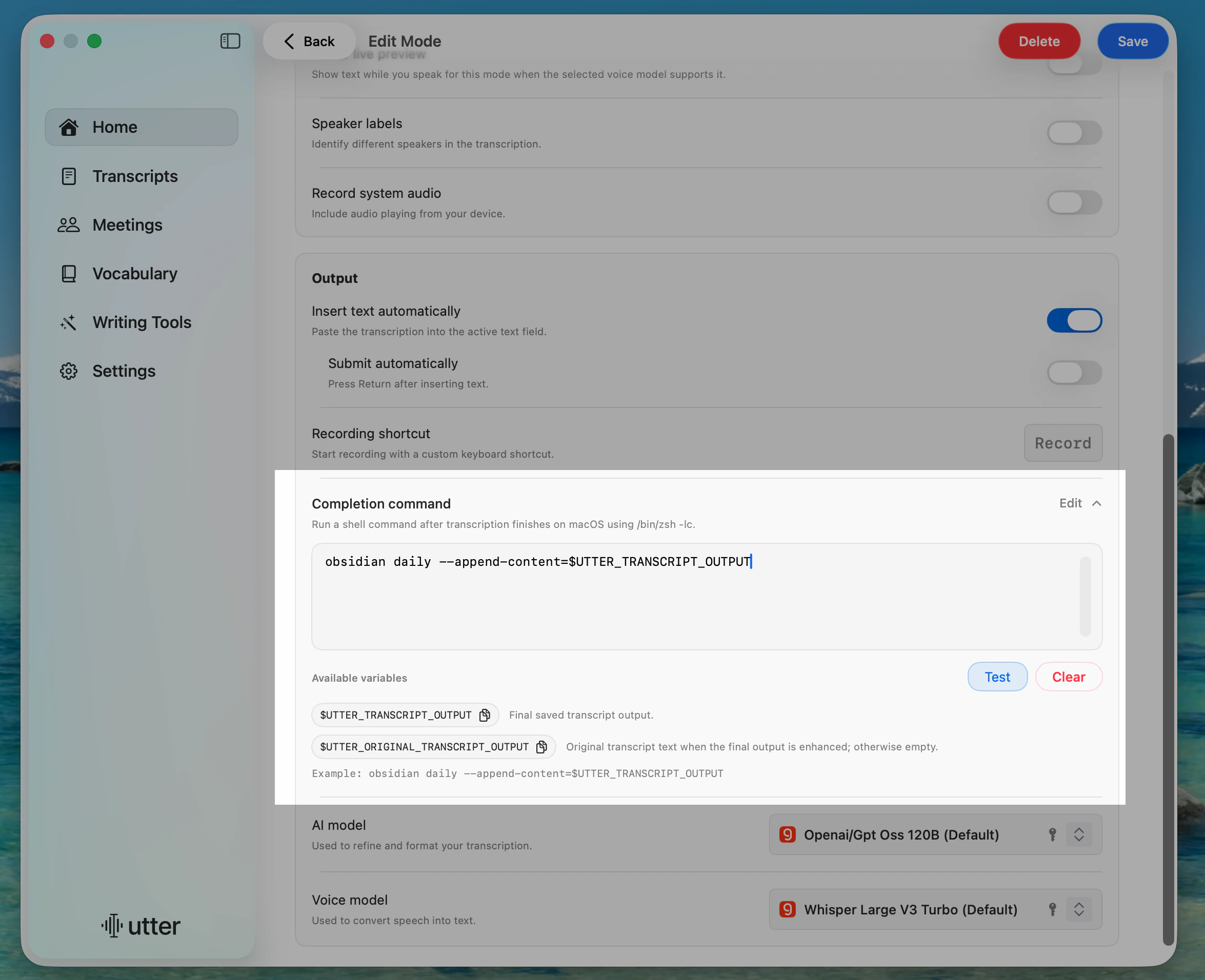
Use completion commands when you want Utter to send the final transcript to another app or script automatically. For example, you can append each finished dictation to your Obsidian daily note with the Obsidian CLI.
Completion commands run shell commands on your Mac. Only use commands you trust.
Add a Completion Command
Open Home
In Utter, go to Home.
Edit a Mode
Select the mode you want to automate.
Open Completion Command
In Output, open Completion command and click Edit.
Enter a Command
Add the shell command you want Utter to run after transcription.
Test and Save
Click Test, then click Save.
/bin/zsh -lc.
Available Variables
Use these variables in your command:
| Variable | Meaning |
|---|
$UTTER_TRANSCRIPT_OUTPUT | Final saved transcript output. |
$UTTER_ORIGINAL_TRANSCRIPT_OUTPUT | Original transcript text when the final output is enhanced; otherwise empty. |
Example: Append to Obsidian
obsidian daily --append-content=$UTTER_TRANSCRIPT_OUTPUT
Dictation Controls
Control recording with these URLs:
| Action | URL |
|---|
| Start recording | utter://dictation/start |
| Stop recording | utter://dictation/stop |
| Pause recording | utter://dictation/pause |
| Cancel recording | utter://dictation/cancel |
Mode Switching
Switch to a specific mode:
utter://mode/set/{mode-name}
Voice to Text becomes voice-to-text):
| Mode Name | URL |
|---|
| Obsidian Notes | utter://mode/set/obsidian-notes |
| Email | utter://mode/set/email |
| Voice to Text | utter://mode/set/voice-to-text |
Usage Examples
Terminal
open "utter://dictation/start"
Shortcuts.app
Add Open URLs Action
Add an Open URLs action.
Enter Utter URL
Enter a Utter URL (for example, utter://dictation/start).
Run Shortcut
Run the shortcut to trigger Utter.
Raycast / Alfred
Create a script or workflow that opens the URL:
open "utter://mode/set/email"
open "utter://dictation/start"
Keyboard Maestro
Use the Open URL action with any Utter deep link to trigger it from a macro.